“UnitedCommunity” Documentation by “Diabolique Design”
UnitedCommunity - BuddyPress Theme
Last update: 4 Aug 2018
By: Diabolique Design
Changelogs
Thank you for purchasing UnitedCommunity theme. If you have any questions that are beyond the scope of this help file, please visit my Support Forum. Thanks so much!
P.S. Before you ask any question please read FAQ section on the item page:

Please visit online version of theme documentation. It's usually more up to date than the offline documentation.
Table of Contents
- I. Theme installation
- II. How to enable intranet?
- III. How to translate theme?
- IV. Contact form installation
- V. How to use Elementor page builder?
- VI. Shortcodes
- VII. How to add subtitle and thumbnail caption to blog post?
- VIII. How to change font?
- IX. Events manager installation
I. Theme installation - top
It's recommended to use PHP 7 on server which is 2x faster than php 5.x.1. Go to WP Dashboard -> Appearance -> Compress -> Themes -> Add New and upload unitedcommunity-theme.zip file with a theme and activate.
2A. Activate BuddyPress, bbPress, Elementor, BuddyPress Global Search and UnitedCommunity Shortcodes plugins.
2B. Go to Settings → Buddypress, select everything like on the following screenshot and SAVE:
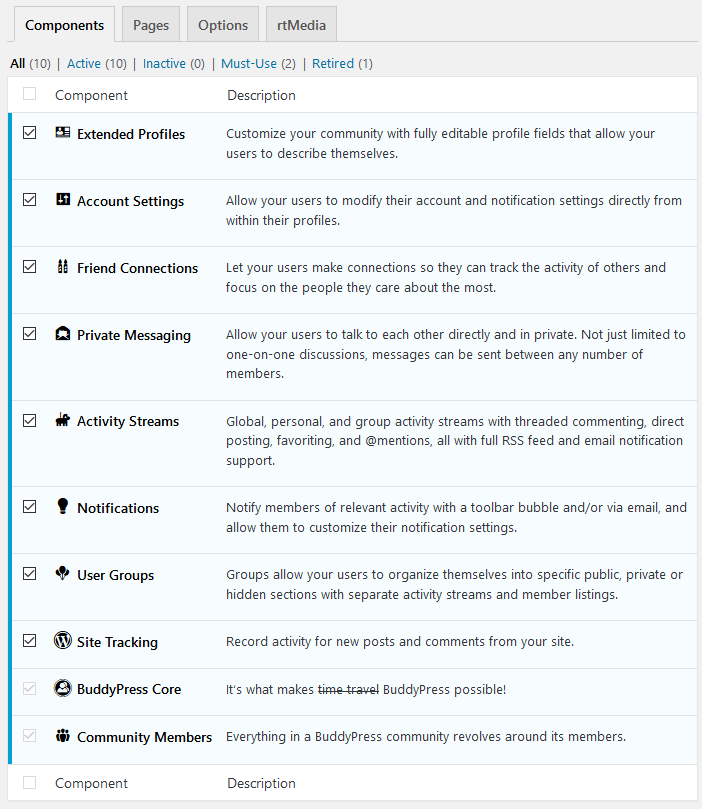
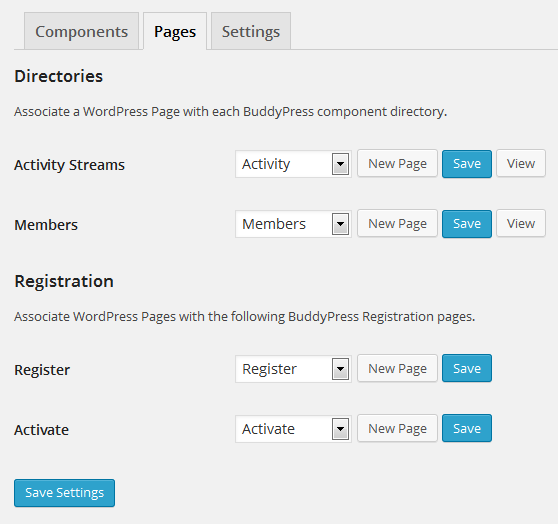
2C. Go to Pages, create 2 pages called Activate and Register.
Now go to Settings → Buddypress → Pages tab and assign created pages like on this screenshot:
2D. Go to Settings → Permalinks select Post name and SAVE
2E. Go to Pages, create new page called Forums and paste following shortcodes (in Text mode):
[bbp-forum-index]
<h3 class="rtt">Recent Topics</h3>
[bbp-topic-index]
Select Template: Default Template and save.
Go to Forums → New Forum and create new forum called Group Forums
Now go to Settings → Forums and select Group Forums Parent: Group Forums ans SAVE.
3. Create empty page called Home (Pages → Add New) with selected Frontpage Page Builder page template:
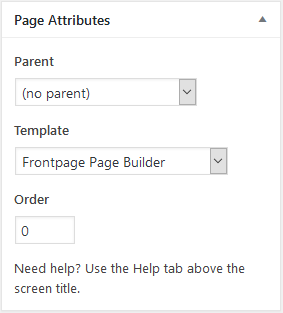
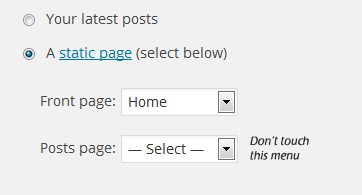
4. Go to Settings → Reading, select Front page: Home and SAVE changes (do not touch Posts page).
5. Go to Elementor -> My Templates -> Import Templates -> Upload frontpage-elementor.json file.
Now go to the Home page -> click on the Edit with Elementor -> Add Template
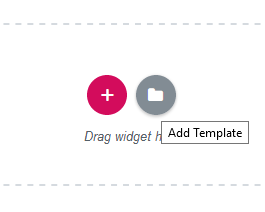
Go to the My Templated tab and insert frontpage-elementor.
6. Go to Elementor -> Settings and setup everything like on the following screenshots:
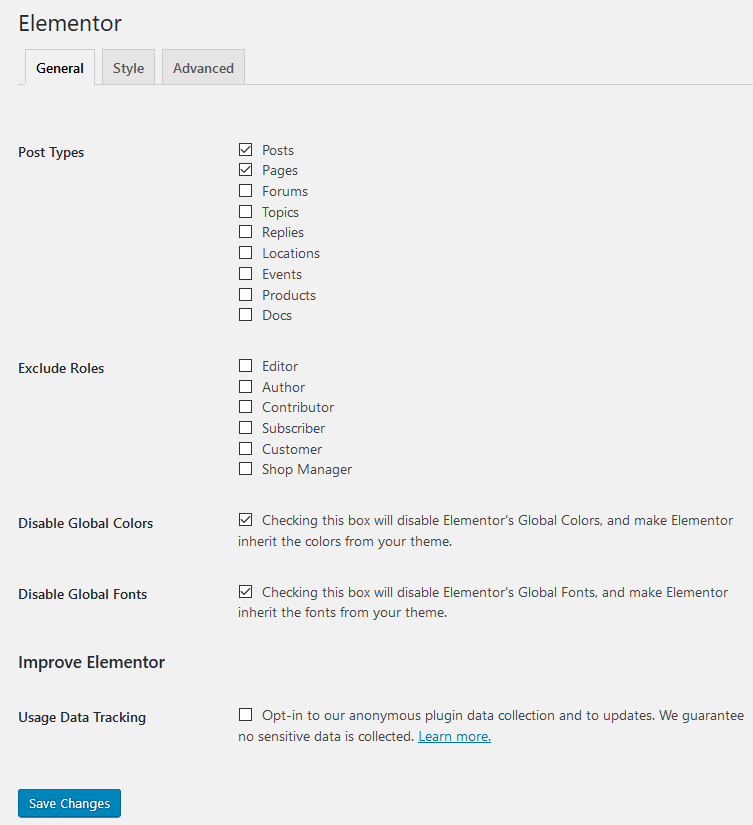
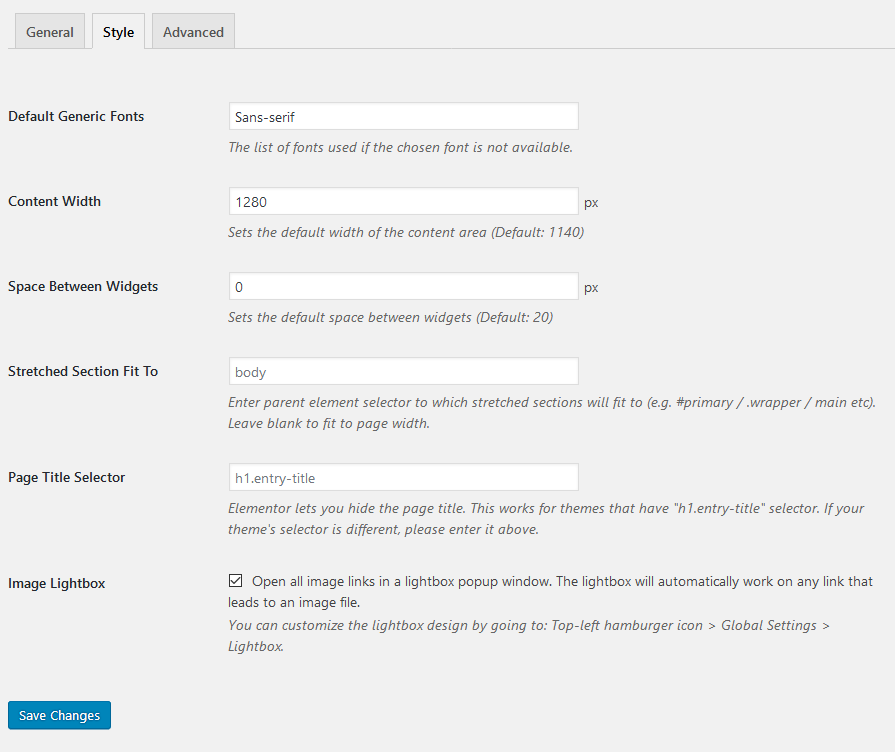
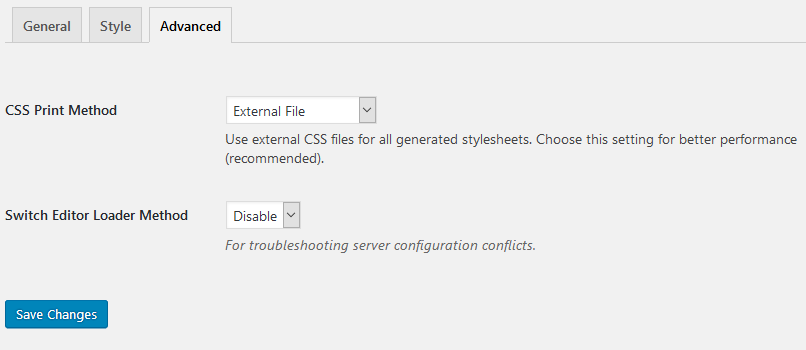
6. Create empty page called Login (Pages → Add New) with selected Login Page template (permalink must be login - slug can be changed in the language file).
7. Create empty page called for example Password Recovery (Pages → Add New) with selected Password Recovery template. Permalink for this page must be recovery - slug can be changed in the language file.
8. Create empty page called for example Blog (Pages → Add New) with selected Blog, Blog Masonry, Blog Masonry (No Sidebar) template.
9. Go to Settings → General and check Anyone can register.
10. You can setup all widgets like on the screenshot:

11. You can edit theme settings under Appearance → Theme Options.
12. You should resubmit featured images of recent post so WP will regenerate blog thumbnail sizes.
II. How to enable intranet? - top
1. Create page with Intranet slug, you can import intranet-elementor.json elementor frontpage. 2. Go to Appearance -> Customise and enable Intranet. Your website shouldn't be installed in child folder otherwise you should open functions.php and before each safe slug:/login/", "/login", "/register/", "/register", "/intranet/", "/intranet", "/recovery
add child directory name. An example:
/child/login/", "/child/login", "/child/register/", "/child/register", "/child/intranet/", "/child/intranet", "/child/recovery
III. How to translate theme? - top
1. Install Poedit software - www.poedit.net.2. Open installed software, go to File -> New cataloque from POT file ... -> open wp-content/themes/unitedcommunity/lang/unitedcommunity.pot and wp-content/plugins/unitedcommunity-shortcodes/lang/unitedcommunity-shortcodes.pot files and save as en_EN, de_DE, it_IT, es_ES ...
3. Upload created files (.po and .mo) into wp-content/themes/unitedcommunity/lang/ and wp-content/plugins/unitedcommunity-shortcodes/lang/unitedcommunity-shortcodes.pot.
4. Open the wp-config.php file and modify following code line:
define('WPLANG', '');
Put the code of your language, for example:define('WPLANG', 'de_DE');
IV. Contact form installation - top
Install Contact Form 7 plugin.Copy shortcode with contact form from Contact settings page. Now create page called "Contact Us", paste shortcode with contact form and select Contact Form template under Page Attributes.
V. How to use Elementor page builder? - top
While creating new section should paste responsive-wrapper additional class.If you want to make some parts of page visible for members you should paste for-logged-out-users class and for-logged-out-users if you want to display some part for guests only.
Optionally you can put following css classes:
opensans-300-italic
opensans-400
opensans-400-italic
opensans-700
opensans-700-italic
opensans-800
droid-serif-400
droid-serif-700
These classes will change font family without loading another font so you will save weight of your website and loading speed.
Elementor documentation you can find here - https://docs.elementor.com
All style of shortcodes is in the wp-content/plugins/unitedcommunity-shortcodes/shortcodes.css file.
Colors you can change under Appearance -> Customise.
VI. Shortcodes - top
Before you use shortcodes you have to activate UnitedCommunity Shortcodes plugin.Here is the list of all shortcodes:
[unitedcommunity-recent-forum-topics number_of_topics="5" col="1"]
[unitedcommunity-advanced-title title="Title"]
[unitedcommunity-advanced-title-2 title="Title"]
[unitedcommunity-advanced-title-2-small title="Title"]
[unitedcommunity-recent-blog-comments number_of_comments="5" col="1"]
[unitedcommunity-blog-categories]
[dd-blog-tiles]
[unitedcommunity-members number_of_members="12" type="popular"]
[unitedcommunity-bp-groups number_of_groups="12" type="popular"]
[unitedcommunity-tag-blog-posts number_of_posts="4"	tag="Featured" col="1"]
[unitedcommunity-login]
[unitedcommunity-small-recent-blog-posts-tag number_of_blog_posts=5 col="1"]
[unitedcommunity-recent-blog-posts-tag number_of_blog_posts="5" tag="Featured" col="1"]
[unitedcommunity-sitedesc firstletter="" heading="" desc=""]
[unitedcommunity-blog-tags]

[highlight]Praesent bibendum, libero faucibus vehicula vulputate.[/highlight]

[go href="http://code.google.com"]Take a look on it![/go]

[leftpullquote]Sed sagittis, justo quis sollicitudin viverra...[/leftpullquote]
[rightpullquote]Sed sagittis, justo quis sollicitudin viverra...[/rightpullquote]

[quote]Donec fringilla, urna sit amet euismod congue, turpis lectus accumsan erat, eget luctus tellus ante at leo. Donec vitae nisl vitae eros tincidunt faucibus sit amet vel eros.[/quote]
[quoteby by="Nicole said:"]Donec fringilla, urna sit amet euismod congue.[/quoteby]

[notice]Aenean molestie pharetra facilisis. Duis sem quam, hendrerit nec commodo quis, cursus eget elit.[/notice]

[h1]Heading 1[/h1]
[h2]Heading 2[/h2]
[h3]Heading 3[/h3]
[h4]Heading 4[/h4]
[h5]Heading 5[/h5]
[h6]Heading 6[/h6]

[img]http://www.demo1.diaboliquedesign.com/3/shortcode-image.jpg[/img]
[img]http://www.demo1.diaboliquedesign.com/3/shortcode-image.jpg[/img]
[img]http://www.demo1.diaboliquedesign.com/3/shortcode-image.jpg[/img]
[clear]

[member]You are a member so you can see this message.[/member]

[h6]2 columns[/h6]
[one_half]
	Vivamus ut lectus vitae sapien bibendum mollis. Nam ac risus in urna accumsan ornare nec a sapien.
[/one_half]
[one_half_last]
	Vivamus ut lectus vitae sapien bibendum mollis. Nam ac risus in urna accumsan ornare nec a sapien.
[/one_half_last]

[h6]3 columns[/h6]
[one_third]
	Vivamus ut lectus vitae sapien bibendum mollis. Nam ac risus in urna accumsan ornare nec a sapien.
[/one_third]
[one_third]
	Vivamus ut lectus vitae sapien bibendum mollis. Nam ac risus in urna accumsan ornare nec a sapien.
[/one_third]
[one_third_last]
	Vivamus ut lectus vitae sapien bibendum mollis. Nam ac risus in urna accumsan ornare nec a sapien.
[/one_third_last]

[h6]4 columns[/h6]
[one_fourth]
	Vivamus ut lectus vitae sapien bibendum mollis. Nam ac risus in urna accumsan ornare nec a sapien.
[/one_fourth]
[one_fourth]
	Vivamus ut lectus vitae sapien bibendum mollis. Nam ac risus in urna accumsan ornare nec a sapien.
[/one_fourth]
[one_fourth]
	Vivamus ut lectus vitae sapien bibendum mollis. Nam ac risus in urna accumsan ornare nec a sapien.
[/one_fourth]
[one_fourth_last]
	Vivamus ut lectus vitae sapien bibendum mollis. Nam ac risus in urna accumsan ornare nec a sapien.
[/one_fourth_last]

[h6]5 columns[/h6]
[one_fifth]
	Vivamus ut lectus vitae sapien bibendum mollis. Nam ac risus in urna accumsan ornare nec a sapien.
[/one_fifth]
[one_fifth]
	Vivamus ut lectus vitae sapien bibendum mollis. Nam ac risus in urna accumsan ornare nec a sapien.
[/one_fifth]
[one_fifth]
	Vivamus ut lectus vitae sapien bibendum mollis. Nam ac risus in urna accumsan ornare nec a sapien.
[/one_fifth]
[one_fifth]
	Vivamus ut lectus vitae sapien bibendum mollis. Nam ac risus in urna accumsan ornare nec a sapien.
[/one_fifth]
[one_fifth_last]
	Vivamus ut lectus vitae sapien bibendum mollis. Nam ac risus in urna accumsan ornare nec a sapien.
[/one_fifth_last]

[h6]6 columns[/h6]
[one_sixth]
	Vivamus ut lectus vitae sapien bibendum mollis. Nam ac risus in urna accumsan ornare nec a sapien.
[/one_sixth]
[one_sixth]
	Vivamus ut lectus vitae sapien bibendum mollis. Nam ac risus in urna accumsan ornare nec a sapien.
[/one_sixth]
[one_sixth]
	Vivamus ut lectus vitae sapien bibendum mollis. Nam ac risus in urna accumsan ornare nec a sapien.
[/one_sixth]
[one_sixth]
	Vivamus ut lectus vitae sapien bibendum mollis. Nam ac risus in urna accumsan ornare nec a sapien.
[/one_sixth]
[one_sixth]
	Vivamus ut lectus vitae sapien bibendum mollis. Nam ac risus in urna accumsan ornare nec a sapien.
[/one_sixth]
[one_sixth_last]
	Vivamus ut lectus vitae sapien bibendum mollis. Nam ac risus in urna accumsan ornare nec a sapien.
[/one_sixth_last]
VII. How to add subtitle and thumbnail caption to blog post? - top
While creating post click on Screen Options, select Custom Fields and Add New Custom Field called subtitle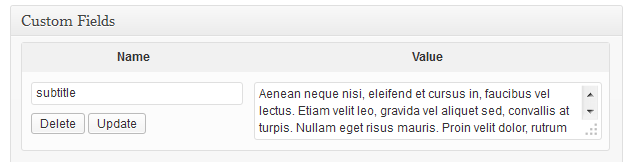
If you want do add short text below thumbnail then while adding thumbnail put some text into Caption field.
VIII. How to change font? - top
If you want to change Droid Serif font - https://www.google.com/fonts/specimen/Droid+Serifthen you have to open functions.php and change this path:
//fonts.googleapis.com/css?family=Droid+Serif:400,400italic,700,700italicOpen wp-content/themes/unitedcommunity/style.css, wp-content/themes/unitedcommunity/css/bbpress.css, wp-content/themes/unitedcommunity/buddypress/css/buddypress.css, wp-content/plugins/unitedcommunity-shortcodes/shortcodes.css and replace Droid Serif name.
If you want to change Open Sans font - http://www.google.com/fonts/specimen/Open+Sans
then you have to open functions.php and change this path:
//fonts.googleapis.com/css?family=Open+Sans:400,300italic,700,800Open wp-content/themes/unitedcommunity/style.css, wp-content/themes/unitedcommunity/css/bbpress.css, wp-content/themes/unitedcommunity/buddypress/css/buddypress.css, wp-content/plugins/unitedcommunity-shortcodes/shortcodes.css and replace Open Sans name.
IX. Events manager installation - top
1. Install this plugin - https://wordpress.org/plugins/events-manager2. Go to Events -> Settings -> Pages -> Event Pages -> Display events as: Pages.
Once again, thank you so much for purchasing this theme. If you have a more general question relating to the themes on ThemeForest, you might consider visiting the forums and asking your question in the "Item Discussion" section.
Diabolique Design